Copy at kernel speed.
RocketCopy v2.01.2 is a one-window copy tool for Windows. It hands your files straight to the kernel — several at a time — so a folder with thousands of small files stops taking all day. Drag, drop, press Start Copy.
30-day free trial · No signup · One-time purchase, no subscription
Also built in: Fast delete (permanent, parallel) and Empty Recycle Bin — one click. Both work during the trial and after it ends, no code needed. See how →
Benchmarks
Real folders, real drives. Every run below copies the same source —
C:\Windows\WinSxS, the Windows component store: about
80,000 files in 10 GB, almost all of them small. Click any
screenshot for the full-size original.
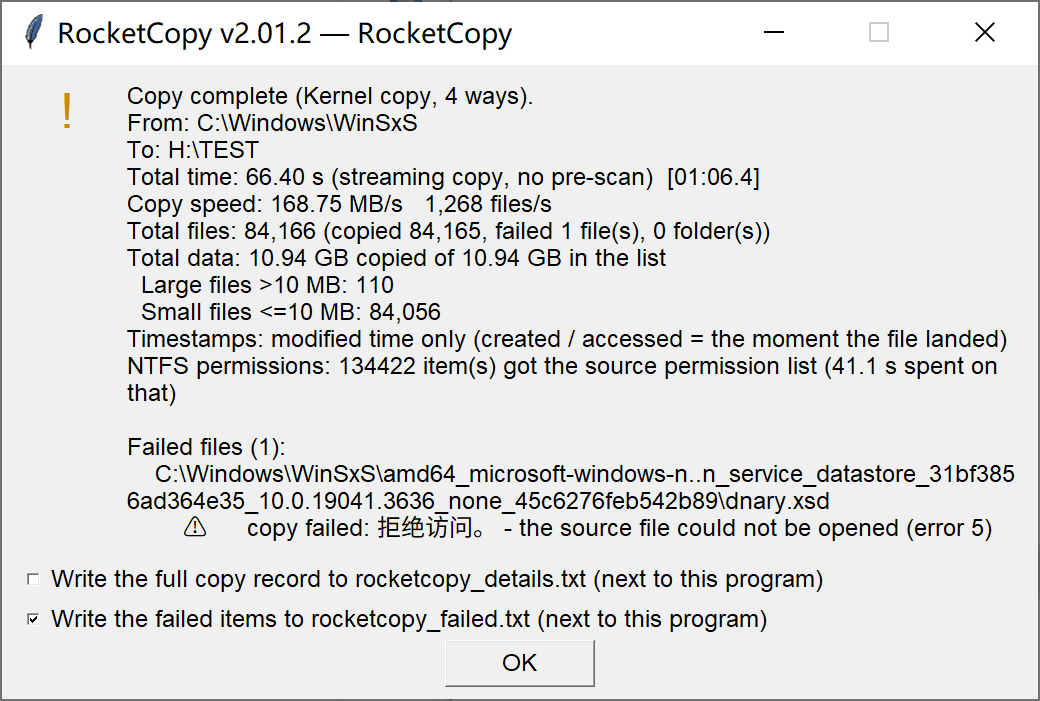 C: NVMe → H: NVMe — 66.40 s · 168.75 MB/s · 1,268 files/s
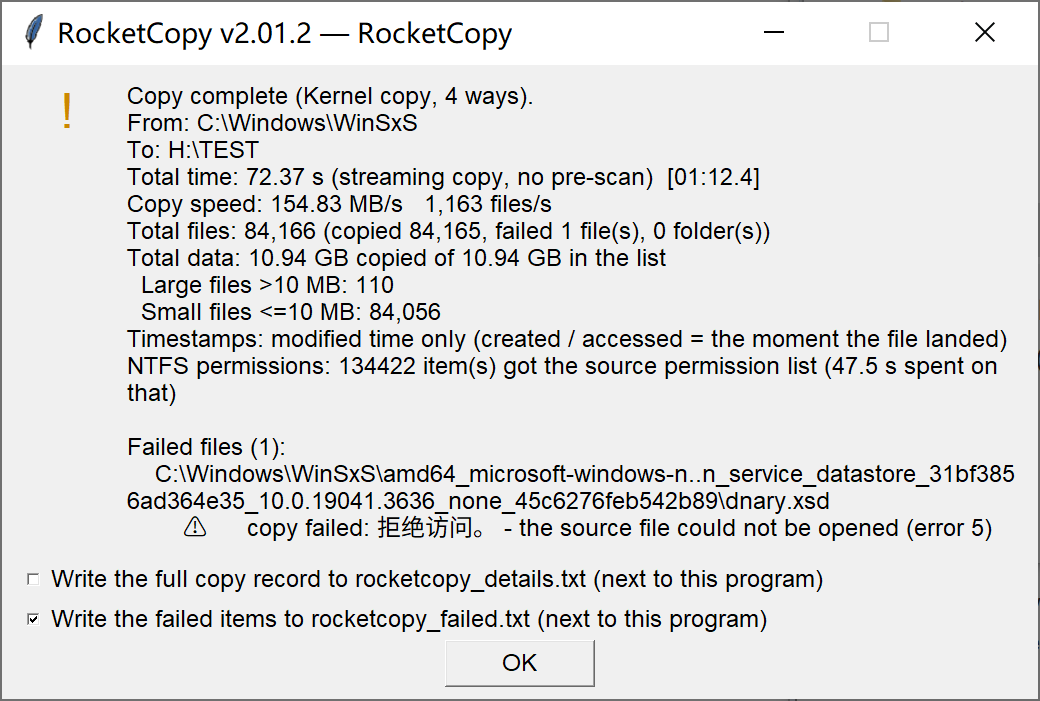 Same run, repeated — 72.37 s · 154.83 MB/s · 1,163 files/s
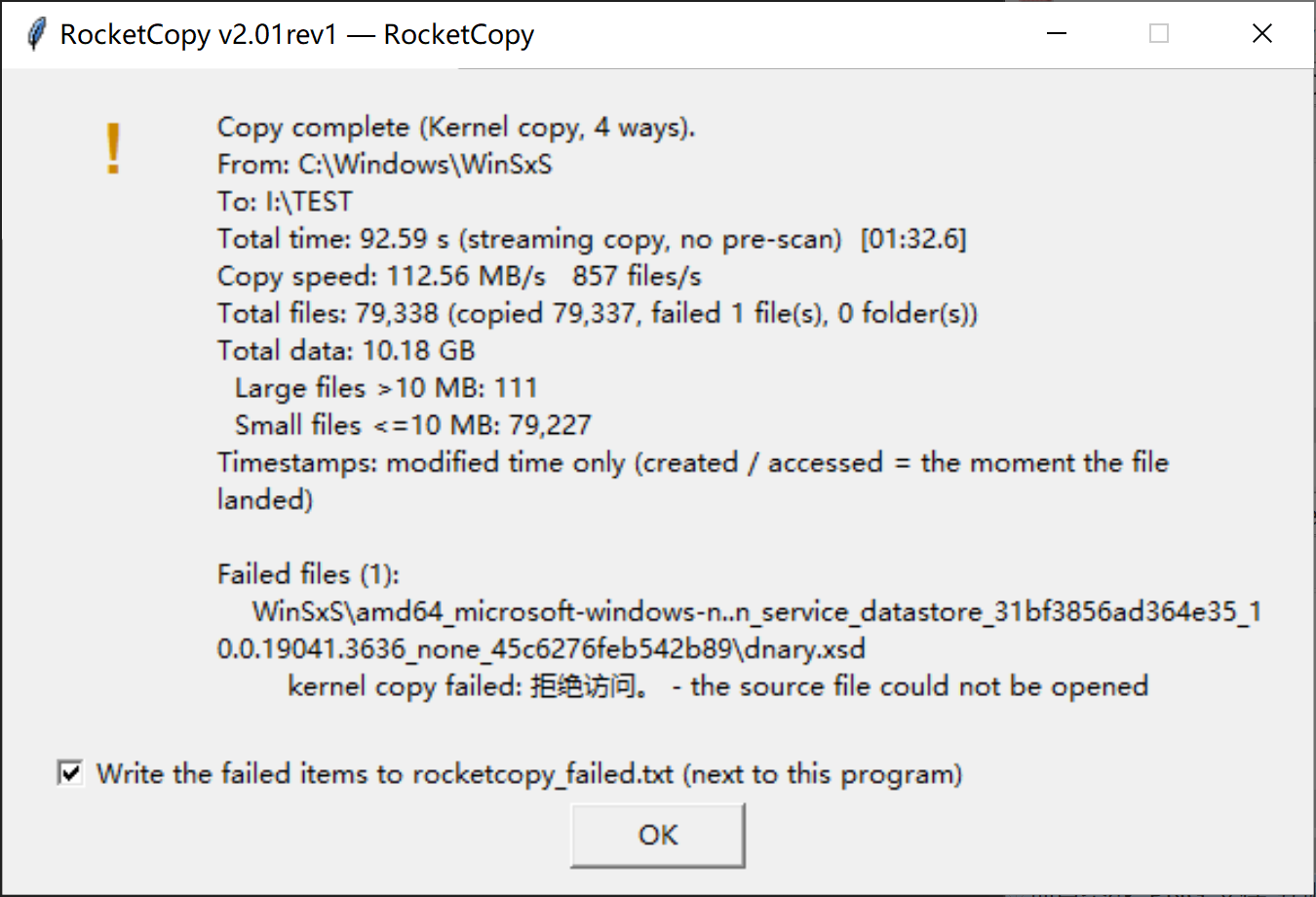 C: NVMe → I: SATA SSD — 92.59 s · 112.56 MB/s · 857 files/s
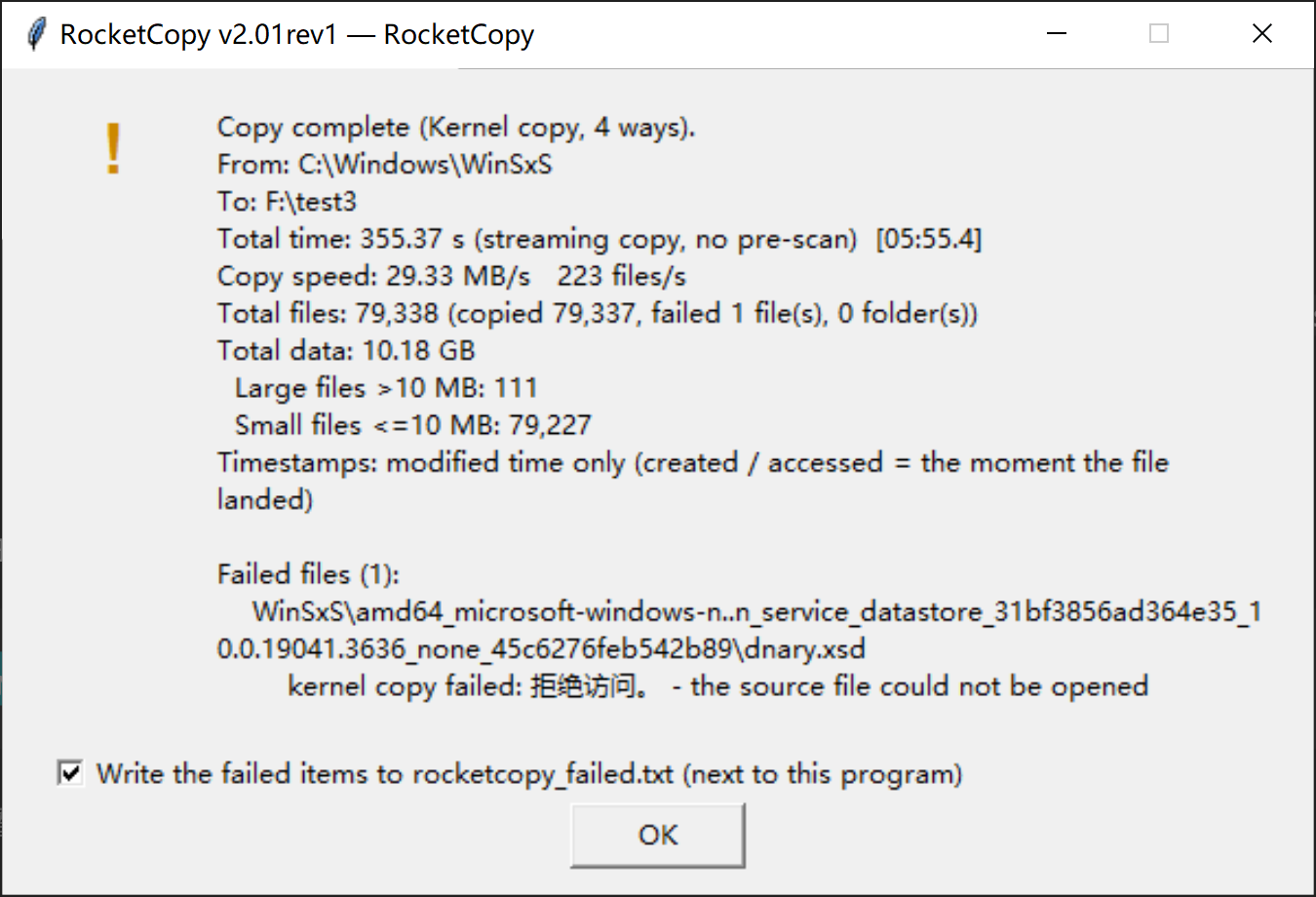 C: NVMe → F: mechanical disk — 355.37 s · 29.33 MB/s · 223 files/s
Measured with RocketCopy v2.01.2 (the NVMe runs) and v2.01rev1 (the SATA-SSD and mechanical-disk runs): kernel copy, four files at a time, no pre-scan. The two NVMe runs were made with the NTFS permission option switched on — 41.1 s and 47.5 s of their time is permission work, and that option is off by default. In every run one WinSxS file that Windows keeps locked failed to copy.
See it in action
Two short clips, about fifteen seconds each: what RocketCopy is built for, and how a job ends — fast, then verified. Click play; sound is optional.
Both are short animated clips, not screen recordings, and each file is only a few megabytes — they stream straight from this site, nothing is hosted on a third-party video platform.
One window. Every copy job.
Windows' built-in copy crawls when there are huge numbers of small files — even on an SSD. RocketCopy was built to fix exactly that, and everything below ships in the same 9 MB file.
⚡ Kernel-parallel engine
Each worker thread hands one file straight to Windows' own copy API. Four files move at a time by default (8 or 16 if you ask for it), and files above 64 MB are copied with no system-cache buffering.
🖱️ Right-click and Send To
Select anything in Explorer, right-click → RocketCopy to... — or use the Send To entry. A small box asks where to copy it to and starts the job, so you do not have to open the whole window for a quick copy. Install and remove the menu entries from inside the app, no registry editing.
🔁 Resume
Re-run an interrupted job and files that already landed are skipped. For files above 64 MB, chunked resume — optional, off by default — continues a half-copied file from where it stopped instead of starting over.
✅ Byte-for-byte verify
Tick it and RocketCopy reads the copy back from the destination and compares it with the source. The completion report says how many files matched and how long the check took.
⚖️ Four ways to handle collisions
Ask before overwriting (the default), Overwrite, Skip, or Keep both — which writes the incoming file as name (2).ext so nothing is ever lost.
🚚 Move mode you can trust
Move deletes each source file only after its copy has fully landed, then removes source folders once they are empty. A folder that still holds an uncopied file is kept.
🗑 Fast delete, built in
Drag files in and they are deleted in parallel — permanently. Next to it, one click empties the Recycle Bin on every drive. Both keep working after the trial ends. Details →
🗓 Dates and permissions
Keep the original creation, modified and accessed times — or copy the source's NTFS permission list (ACL) onto the copy. Both optional, both off by default.
📊 A report you can read
Live status while it runs — files done, ways in use, files per second. When it finishes: time, total size, copy speed, big and small files counted separately, and every failure named.
🔍 Find it in the list
The search box under the source list filters as you type — handy right after you have dropped in a few hundred items.
🖥 Crisp on any display
DPI-aware: on a 125% or 150% scaled display the text renders natively instead of being stretched into a blur.
🪶 One file, no strings
A single ~9 MB executable. No installer, no .NET, no runtime, no background service, no account, no telemetry. Your files never leave your computer.
Two delete tools — and they do not expire with the trial
The 30-day trial covers copying. These two are not gated by it: they work during the trial and after it ends — no registration code, no time limit, the same speed either way.
🗑 Fast delete (permanent)
Drop files and folders into the box in the bottom right corner and they are deleted in parallel — 4, 8 or 16 threads, the same engine the copy side uses. A folder holding tens of thousands of files is gone in seconds, where Explorer needs minutes.
The box says so in red, all the time: what you delete here does not go to the Recycle Bin and cannot be recovered. Nothing is removed until you press Delete and confirm the list. For anything you might want back, use Windows Explorer instead.
♻️ Empty Recycle Bin — one click
The button next to the delete box empties the Recycle Bin Windows itself keeps — every drive, your account, in one go. One click, one confirmation, and the space is back.
It only ever touches what is already sitting in the Recycle Bin: files you deleted earlier through normal Windows deletes. Nothing you have not sent there yourself is at risk.
After the 30 days: the copy buttons ask for a registration code — these two do not. Same speed, same thread choices, before and after the trial ends.
The window
Two panes, one settings block, two delete boxes. Nothing hides behind menus, and nothing is more than one click away.
Left pane — what to copy
Drop in as many files and folders as you like, in one go or several. Buttons for Add Files..., Add Folder..., Remove selected and Clear. The search box underneath filters the list as you type.
Right pane — where it goes
Drop a folder in, or paste a path straight into the box. Items keep their own names at the destination. Add Folder... and Clear sit underneath.
Settings, remembered for next time
| Setting | Choices | What it does |
|---|---|---|
| Parallelism | Automatic (4 ways) · 8 ways · 16 ways | How many files are copied at the same time. Automatic picks 4 — the best all-round choice in testing: on a real SSD, 8 ways gains only about 7%, while on a RAM-disk target 4 ways is clearly faster. |
| Copy mode | Copy · Move | Move deletes each source file only after its copy has fully landed. |
| If file exists | Ask before overwriting · Overwrite · Skip · Keep both | Ask offers Yes / Yes to all / No / No to all / Cancel for each collision. Keep both writes name (2).ext. |
| Verify byte-by-byte | off by default | Reads the copy back from the destination and compares it with the source. |
| Keep original dates and times | off by default | The copy gets the source's creation, last-modified and last-accessed times. |
| Copy NTFS permissions | off by default | Applies the source's permission list (ACL) to the copy. NTFS drives only. |
| Write a run log | on by default | rocketcopy_log.txt next to the exe — plain text, every error line marked [ERR], failed items named with their full path. |
| Write a detailed log | off by default | One line per copied file, with full paths. Off unless you tick it yourself. |
| Reset settings | button | Puts every setting above back to its factory default. |
Your choices live in your Windows user settings — the six options in the table, plus one path: the destination folder you last picked in the right-click box, kept only so it can be filled in for you next time. No file names, no user data. No .ini file is written next to the exe, and none is read. Delete that registry key and all of it is gone; Reset settings is not the same thing — it only returns the options to their factory values and deliberately leaves that remembered folder alone.
Two delete boxes, built in
- Fast delete (permanent) — drag files and folders in, delete them in parallel (4 / 8 / 16 threads). Permanent by design: the Recycle Bin is not used, nothing deleted here can be recovered, and a red warning in the box says so before you press Delete.
- Empty Recycle Bin — clears what is in the Recycle Bin on every drive, in parallel, behind the same kind of red warning and a confirmation.
Pricing
Try everything for 30 days. Pay once if you keep it.
Trial
- Every feature, nothing disabled
- No signup, no email required
- Test it on your own files first
Full License
- Use it forever — no subscription
- Activates on one computer per license key
- No account, no sign-up — paste the key and you are done
- Reinstalling Windows or changing drives never breaks it
- 14-day refund, no questions asked
Online checkout is being set up. Until it is live, email us to buy — we will send your license key by hand, usually the same day.
Download
The trial is the whole program with a 30-day clock — every feature is unlocked, so you can test it on your own hardware and your own files before paying.
Download RocketCopy v2.01.2 (64-bit, 8.9 MB)
Direct link if you prefer: download/rocketcopy.exe
Single .exe — run it from anywhere. No installer, no signup. If the download won't start, email us and we will send it to you.
File: rocketcopy.exe · 9,387,096 bytes ·
version 2.01.2 · build of 25 October 2026
SHA-256: f9d1a82e86b8ea91b714d86fccd65e346a3b498b082f7bc71d1c02c0057df22f
MD5: 92c527547d512196d0ef56e507c6a010
Windows may warn you the first time you run it. RocketCopy is not signed with a commercial code-signing certificate yet, so Windows SmartScreen can show “Windows protected your PC” with an unknown publisher. That is expected for a small independent tool — it is not a virus warning, and nothing about the program changed.
To start it anyway: in that dialog click More info, then Run anyway. Windows remembers the choice for that file.
We recommend scanning the file with your own antivirus before the first run. Download it, right-click the file → Scan with your antivirus (or send it to VirusTotal), and only then start it.
To confirm the file is exactly the one published here, compare either
checksum with the values above — in Command Prompt:
certutil -hashfile rocketcopy.exe MD5 or
certutil -hashfile rocketcopy.exe SHA256.
Both are computed from this build; either one matching is enough.
Read the Privacy Policy for exactly what the program does and does not do. A code-signing certificate is on the roadmap; until then an unknown-publisher warning is standard for unsigned independent software.
What's new
v2.01.2 — 23 October 2026 (maintenance)
- Cancelling no longer leaves a trail of empty folders behind. On a large tree the run used to create the folders it had not reached yet at the destination; now it does not. Folder timestamps and permissions are still applied to the folders that did land.
- Closing the window during a delete now asks first. A delete or an Empty Recycle Bin that is still running used to be interrupted silently — you now choose, and the job is still accounted for in the log either way.
- "Empty Recycle Bin" empties only your own account's bin — other accounts on the same machine are no longer touched.
- A broken link inside the source tree is reported as a failure instead of quietly dropping out of the run.
- Dialog boxes open on the monitor the main window is on, and stay inside that monitor's usable area.
- Long deletes report progress — a line goes to the log every 30 seconds.
- Fixed: very deep paths were re-copied every run. The last-modified time could not be read on those paths, so those files never counted as already present.
- The way files are copied is unchanged.
v2.01.1 — 19 October 2026 (bug fix)
- Fixed: the bottom row of buttons was invisible on a 1920×1080 display. On a 4K screen everything looked fine, but on 1920×1080 (and any desktop shorter than the layout) the row with Start Copy, cancel, Register, About and the two menu installers could not be seen — it was pushed past the screen edge or hidden behind the taskbar. The window is now sized to the usable desktop area (taskbar excluded), and that row is laid out first, so it always stays visible. Nothing else changed.
v2.01 — 18 October 2026
- The right-click box opens about twice as fast. After RocketCopy to... or Send To, the “copy to where?” box no longer waits for other Explorer invocations to finish, and the licence check moved off the start-up path.
- Multi-select arrives as one window. Pick a hundred files in Explorer and they all land in the same box, counted correctly.
- The finishing report stops mixing two different counts. "Allowed to be overwritten" and "actually written" are now separate numbers, so a folder full of files another program was holding open no longer looks like success. The data line names both the list size and what actually landed.
- Waiting for your answer is no longer counted as copy time. Total time, log elapsed time and copy speed all exclude the time you spend on the overwrite prompt.
- Copying a run onto the main window keeps the folder you picked — pressing More options used to arrive with an empty destination box.
- Right-click menu cleanup touches only RocketCopy's own entries. Nothing else in the shell menu is read or removed.
- Sharper text on 125% and 150% displays, and the resume checkbox is easier to hit.
The complete manual is online too: Read the full readme (or take it as plain text).
System requirements
- Windows 7 (64-bit) or Windows 10 (64-bit)
- A single executable — run it from a USB stick if you like
- No .NET, no runtime, no background service
Questions
Is this a subscription?
No. $9.95 once, and the version you bought keeps working forever. There is no recurring charge.
How many computers can I activate?
One computer per license key — the key is bound to that machine's hardware fingerprint. To run RocketCopy on more computers, buy one license per computer.
Does activation require an internet connection?
It depends on the key you have. An offline key is checked entirely inside the app on your own computer and never contacts anything — ask for one by email if your machine has no internet access. A standard key is confirmed with our license server when you activate it, and the app re-confirms the license with that server from time to time afterwards; only the key and an installation identifier are involved, never your files. See the Privacy Policy for the details.
Will changing hardware break my activation?
Your license is bound to a fingerprint built from CPU and motherboard identifiers only — no disk serials, no computer name. Renaming your PC, swapping or adding drives, or reinstalling Windows never breaks activation. Replacing the motherboard or the CPU changes that fingerprint, so the app has to be activated again; that is a fresh activation, not a new purchase. Email rocketcopy26@outlook.com with your order details and we will tell you what is needed for your case.
What happens to my files?
By default RocketCopy only reads your source and writes the
destination — your originals are never touched. Move mode is opt-in,
and the Fast delete box is permanent by design, with a red warning and
a confirmation before anything goes. There is no analytics and no
telemetry, and your files never leave your computer. The run log is a
plain text file next to the exe: error lines are marked [ERR]; any
drive-letter path is written as
What if a copy is interrupted?
Run the same job again: files that already landed are skipped. For files above 64 MB you can also turn on chunked resume (optional, off by default) and a half-copied file continues from where it stopped instead of starting over.
How do I know the copy is good?
Tick Verify byte-by-byte and RocketCopy reads the copy back from the destination and compares it with the source. The completion report tells you how many files matched and how long the check took.
What happens when the trial expires?
Start Copy is disabled until you activate — everything else, including the Empty Recycle Bin box, keeps working. Activating with your key turns everything back on.
Does it run on Windows 7?
Yes — 64-bit Windows 7 and 64-bit Windows 10 are both supported. The program is a single executable with an embedded runtime chosen for Windows 7 compatibility.
Many small files, or a few huge ones?
Both. The parallel kernel engine is built for huge numbers of small files, and files above 64 MB are copied with no system-cache buffering so big files do not have to fight the cache.
Windows says the publisher is unknown / SmartScreen blocked it
The program is not signed with a commercial certificate yet, so SmartScreen
shows an “unknown publisher” warning for any small unsigned
tool. Click More info → Run anyway.
You can verify the download first with the MD5 or SHA-256 printed in the
Download section (certutil -hashfile rocketcopy.exe MD5 or
... SHA256 in Command Prompt), and we suggest scanning the
file with your own antivirus before the first run. See also our
refund policy — 14 days, no questions
asked.
What if it doesn't work for me?
Ask for a refund within 14 days and you get your money back, no justification needed. See the Refund Policy.